


I know what you’re probably thinking. PI SDK? Isn’t that old technology that’s been superseded by the AF SDK? In most cases you’d be right, but here I aim to address a very specific use case: gathering information on interfaces from a module database (MDB) on a target Data Archive (DA).
Reasons for this are mostly outlined in this article, but I’ll expand on them here:
- The AF SDK does not include classes for MDB, which is understandable since AF superseded the MDB long ago as the store for contextual data in PI. However, some products like the Interface Configuration Utility (ICU) still utilize the MDB to store information.
- The PI AF Link subsystem is not a workaround to push the info to AF because it does not replicate the %OSI branch of the MDB, where interface information sent by ICU is stored.
- The SMT plug-in for MDB does not have an export option.
- The old MDB Builder add-in for Excel was never updated to run on 64-bit Excel so unless you have access to a machine running 32-bit Excel, it cannot be used.
- Using the MDB only requires a connection to the DA, whereas other methods of collecting directly from .bat files on the interface nodes require connection to those nodes. Often due to firewalls and security restrictions, connection to the DA is more readily available.
- The one-time cost of building, testing, and implementing a script is typically much less than doing such a task by hand on a regular basis. Additionally, Powershell (PS) is more accessible to most users than Visual Studio/C# for utilizing SDKs.
- Being able to produce the interface information from a PS script allows us to incorporate its output more readily into other scripts. For example, a script that checks tags for stale or flatline data could be enhanced with information on the scan class used by each tag. Another example: building a custom application to convert PE Tags to Analyses.
So now you know the why, but you probably care more about the how. In a search on PI Square, I found little information on use of PI SDK with Powershell for MDB (1) so my goal here is to give users some explanation and useful code snippets to speed up their script development processes (2).
Note: my apologies for the lack of code blocks and font coloring, but the formatting options for PI Square blogs are quite limited (3).
Step 1: Load the PI SDK in Powershell
If you’ve used AF SDK in Powershell, it’s the same method. This is shown repeatedly in previous examples (1).
[reflection.assembly]::LoadWithPartialName("OSIsoft.PISDK") | Out-Null
Step 2: Select/Connect to DA
Again, the links (1) show how to do this, but basically, we create a Servers collection from the local KST and then select the DA we want by name using the Item property:
# Create a new PI SDK object
$piSdk = New-Object PISDK.PISDKClass
# Create PIServers collection and select desired DA by name.
$srvName = "PISRV1"
$piSrvs = $piSdk.Servers
$piSrv = $piSrvs.Item($srvName)
Note, the Servers collection ($piSrvs) can be useful with a ForEach loop to get information from multiple DAs.
Step 3: Drill into the MDB.
This is where the real fun begins! First of all, how do we get into the MDB? Looking at the documentation for Server objects, we see that they have a property called PIModuleDB (object details).
If you’ve ever explored the MDB using the SMT plug-in, you know that it’s hierarchical in nature:
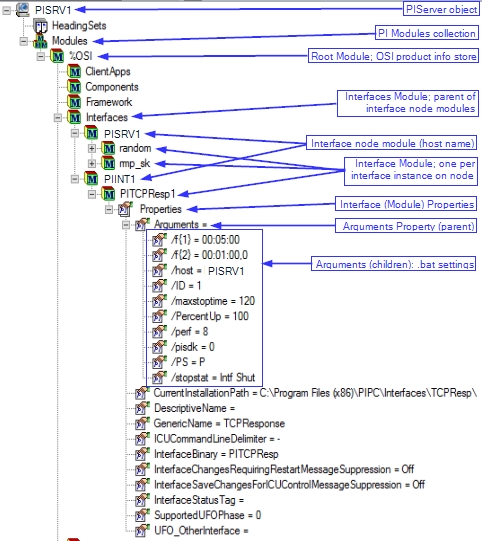
The MDB objects returned from the PI SDK are much the same; we can start drilling into the hierarchy using the PIModules property of each parent object. For example, if we want to get information for the TCP Response interface that sends data from the interface node, PIINT01, to DA server, PISRV1, we can use the following:
$piSrv.PIModuleDB.PIModules("%OSI").PIModules("Interfaces").PIModules("PIINT1").PIModules("PITCPResp1")
To get a better feel for how to traverse the hierarchy in PS, try going one level at a time, just using the PIModules property to see what is returned, e.g.,
$piSrv.PIModuleDB.PIModules
Then,
$piSrv.PIModuleDB.PIModules("%OSI").PIModules
and so on...
As you can see from the earlier line to get info for PITCPResp1, things can get kind of long as you drill down, but there is a shortcut: the PIModules property will accept a path, not just a child name, so we can use this if needed:
$piSrv.PIModuleDB.PIModules("\%OSI\Interfaces\PIINT1\PITCPResp1")
In the PS console, either way returns the module for the individual interface, and we can see it has a PIProperties property similar to what is seen in SMT:
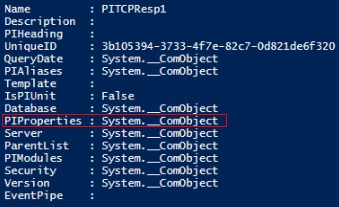
Looking at the hierarchy in SMT, we see the levels of Properties contain the information of interest so we will now use PIProperties instead of PIModules to drill down in the PI SDK. As an example, we can use the following to access the value of the point source (/PS=P) for PITCPResp1:
$piSrv.PIModuleDB.PIModules("\%OSI\Interfaces\PIINT1\PITCPResp1").PIProperties("Arguments").PIProperties("/PS").Value
Step 4: Collect info from MDB and output
Now you see how to get information at various levels of the MDB hierarchy with PI SDK. To get to the desired output, the best way I can think to proceed is to start at a parent level object and loop through its children, repeating at lower levels (i.e., nested ForEach loops). At appropriate levels, the script can save whatever info is wanted. In pseudo-code form, we should be able to use something like this:
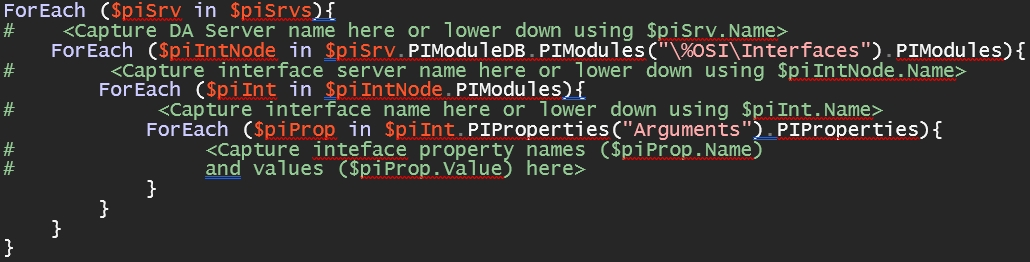
Note the lines enclosed in <> would require the PS code of your choice.
Finally, you can take your information-packed PS object and pipe it to Format-Table or Export-CSV for viewing. As an example, a csv output for the MDB shown above might look like this in Excel:

Now you know how to combine some PI SDK with your Powershell skills to get the interface information you want from the MDB! I hope you found this helpful; please leave your questions or comments below. Thanks for your time!
Footnotes:
(1) There are generally few posts about using PI SDK + Powershell to work with the MDB; here are a few of the posts I’ve come across that maybe helpful:
- This blog discusses using PI SDK + PS to get interface name, host, and point source as part of a larger script, but the attached script was lost in the PI Square change over because the new platform no longer allows attachments, and there is little in the text to guide the user.
- There are quite a few threads on using PI SDK + PS to get/edit tags, but they are only useful to see how to load the SDK or connect to a DA since the rest of their content is superseded by AF SDK methods. Examples: 1, 2, 3.
- This example in VB is useful to see the syntax for some of the PI SDK calls related to MDB.
(2) Caveats:
- It is important to remember that using PI SDK requires a PSA license for production environments.
- This is not an official product or script from OSIsoft (AVEVA) so no expectation of support should be implied. That said, I’ll do my best to help in the comments.
- While this is a way to use Powershell and PI SDK for this task, it may not be the most optimal way. If you have ideas on how to improve anything you see here, please post them in the comments; I’d love to hear them!
- It's assumed ICU is used to register interfaces and edit .bat files. If .bat files are edited outside of ICU, the information in the MDB may not be accurate.
- Some areas that aren’t addressed in this blog but would probably need to be explored for a production script:
- Accounting for collectives.
- Error handling (e.g., failed connection to DA).
- Security and authentication.
- Probably some others I’m not thinking of; please comment if you have ideas.
(3) If you want to vote/comment on lack of format options in PI Square, here are links: 1, 2, 3, 4, 5, 6.