


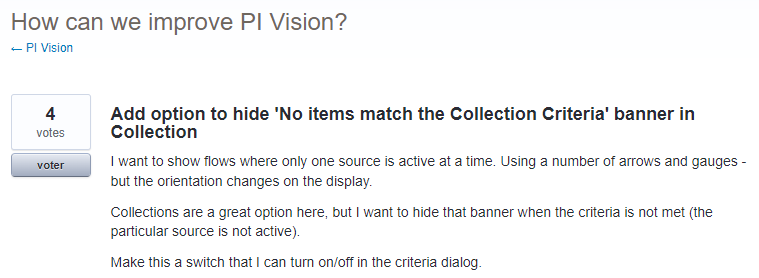
This article gives a solution for the following User Feedback suggestion :
WARNING : The customizations described below won't survive a PI Vision upgrade, meaning you'll have to update the files again after the upgrade. |
Solution : Add an option to switch off the text
Step 1 : Update the collection controller
Open the file PIVisualization.sym-collection.js with a text editor.
(This file is located under %pihome64%\PIVision\Scripts\app\editor\symbols on the PI Vision server).
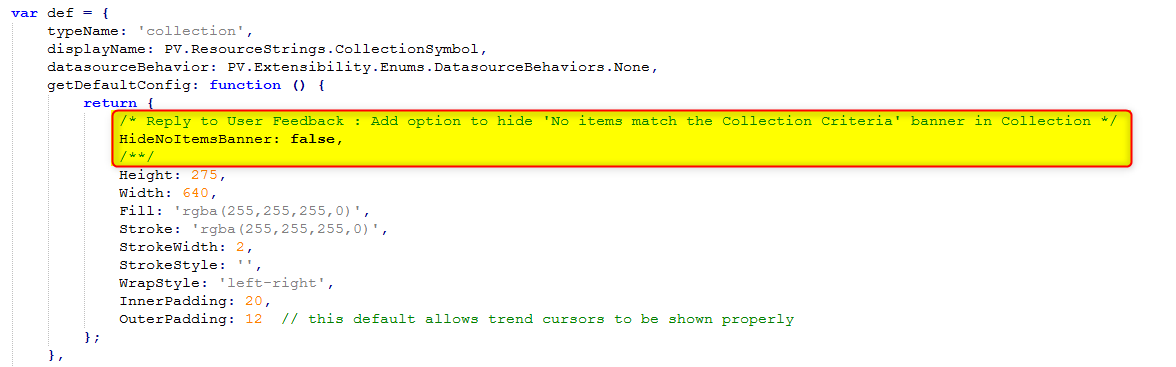
Add the following JS code at the very beginning of the return statement of the getDefaultConfig function :
/* Reply to User Feedback : Add option to hide 'No items match the Collection
Criteria' banner in Collection */ HideNoItemsBanner: false; /**/ |
Result :
Step 2 : Update the configuration panel
Open the file sym-collection-config.html with a text editor.
(This file is located under %pihome64%\PIVision\Scripts\app\editor\symbols on the PI Vision server)
Add the following HTML code at the end of the file :
<!-- Reply to User Feedback : Add option to hide 'No items match the Collection Criteria' banner in Collection --> <ul id="collection-config-options" kendo-panel-bar class="t-side-panel-bgcolor" style="font-size:14px"> <li class="k-state-active"> <span class="panel-bar-label-no-wrap">Options</span> <div style="display:flex;margin:10px"> <label class="flex-align-center"> <input class="c-config-checkbox" type="checkbox" style="margin:0 5px 0 0" ng-model="config.HideNoItemsBanner"> <div> Hide the banner<br /> 'No items match the Collection Criteria.'<br /> </div> </label> </div> </li> </ul> <!----> |
Step 3 : Update the symbol template
Open the file sym-collection-template.html with a text editor.
(This file is located under %pihome64%\PIVision\Scripts\app\editor\symbols on the PI Vision server)
Go the end of the file.
Replace the following HTML code :
<div class="pv-collection-watermark c-box-constrained-container t-content-font-medium" ng-class="theme==='reverse' ? 't-font-color-dk-grey' : 't-font-color-lt-grey'" ng-show="isWatermarkShown"> {{watermark}} </div> |
By this one :
<!-- Reply to User Feedback : Add option to hide 'No items match the Collection Criteria' banner in Collection --> <div class="pv-collection-watermark c-box-constrained-container t-content-font-medium" ng-class="theme==='reverse' ? 't-font-color-dk-grey' : 't-font-color-lt-grey'" ng-show="isWatermarkShown && !config.HideNoItemsBanner"> {{watermark}} </div> <!----> |
Step4 : Restart IIS
Command : iisreset
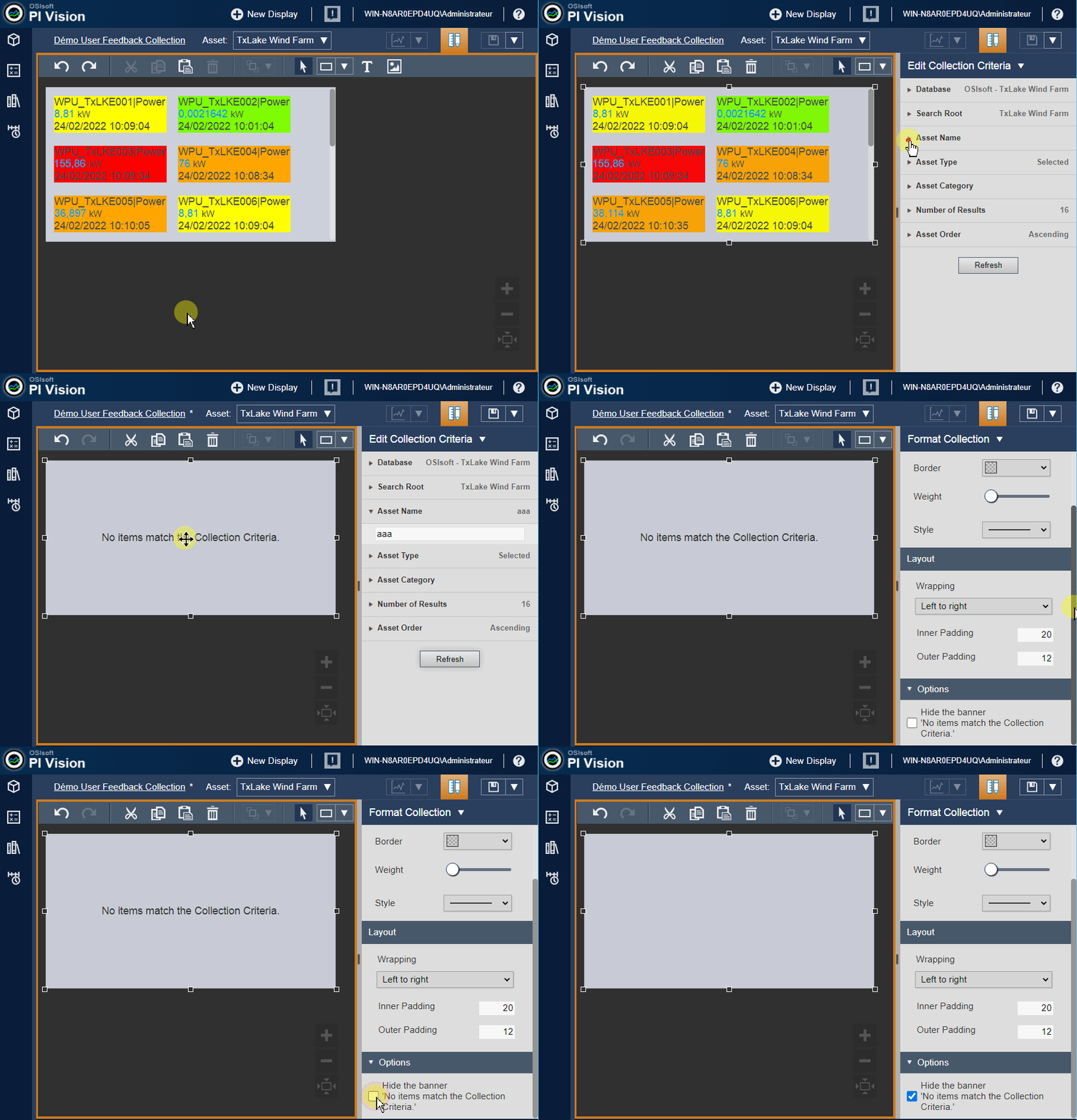
Result in PI Vision
Don't hesitate to contact me if you have any question or feedback to share.